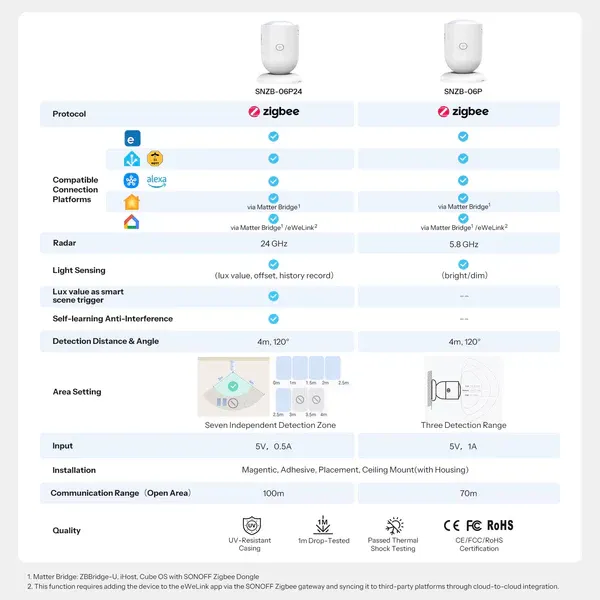
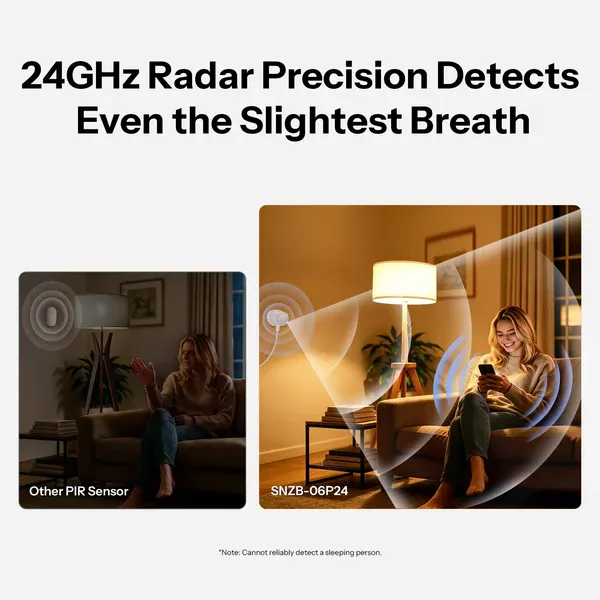
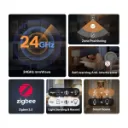
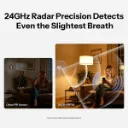
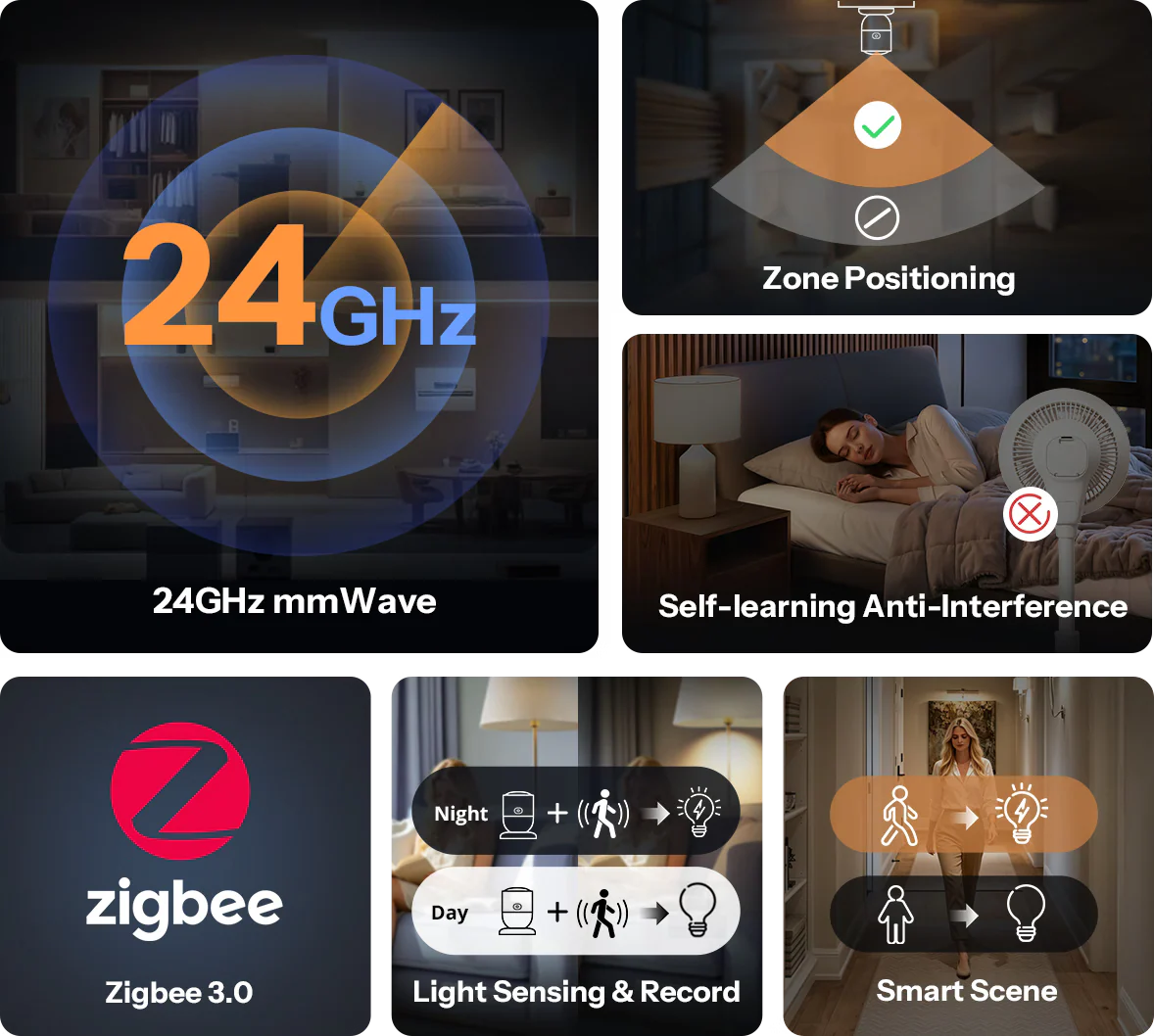
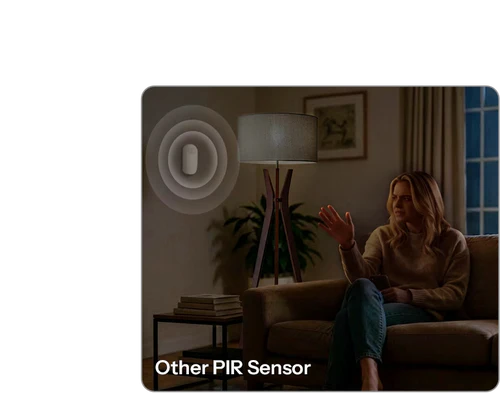
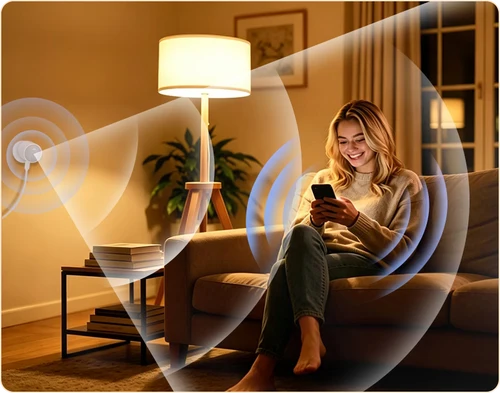
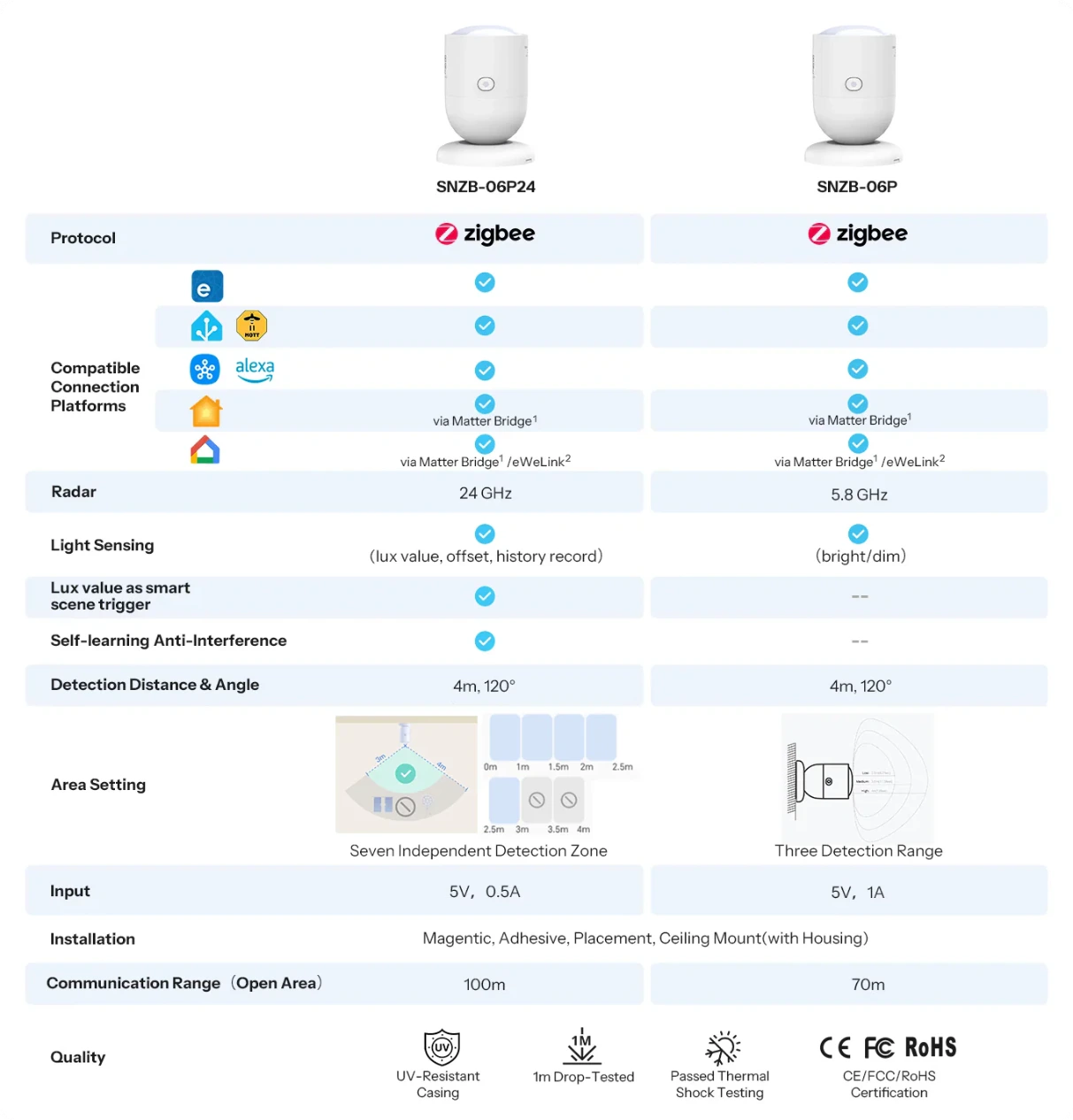
The presence sensor continuously emits radar waves to detect human presence. The 24GHz radar is more accurate than 5.8GHz,
effectively capturing subtle human movements such as chest expansion during breathing in daily activities,
reducing missed detections and false alarms.
*Note: Cannot reliably detect a sleeping person due to extremely subtle chest movements caused by breathing during sleep.
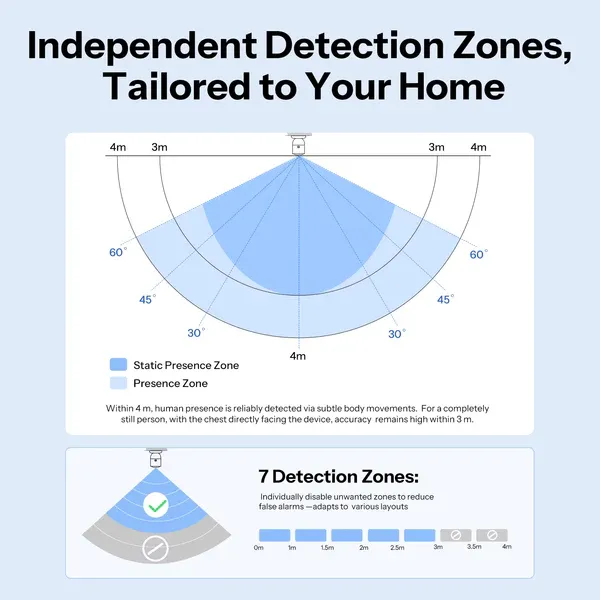
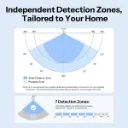
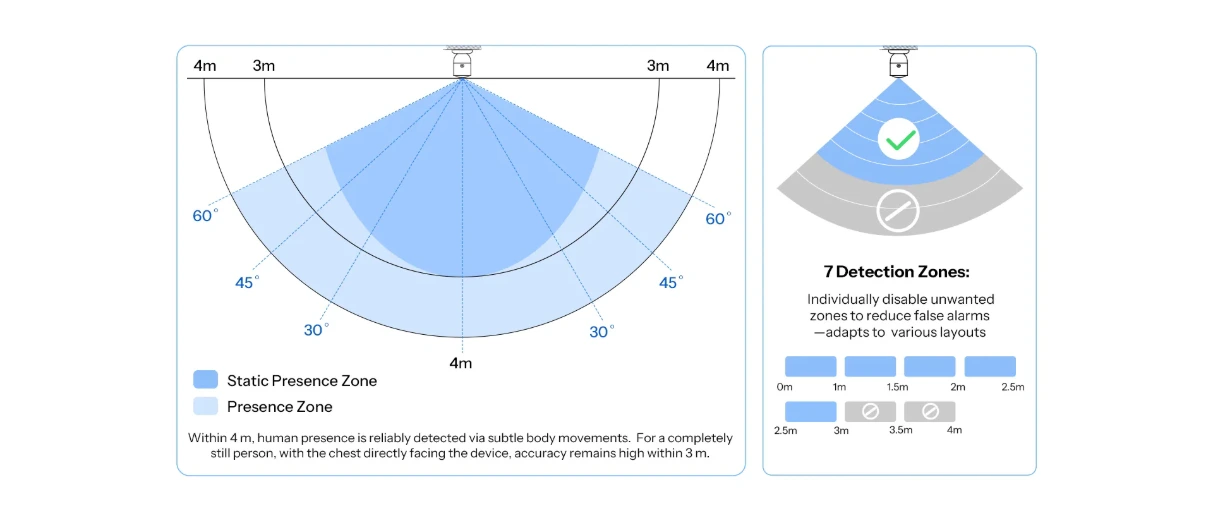
Independent Detection Zones,
Tailored to Your Home
Stationary State: Within 3 meters facing the device.
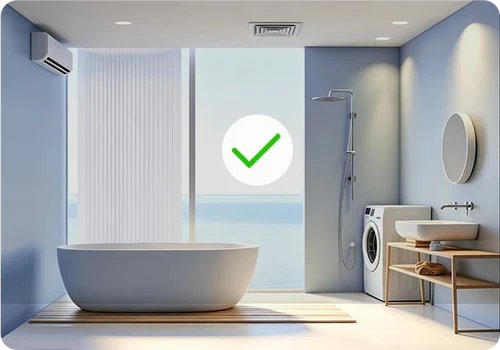
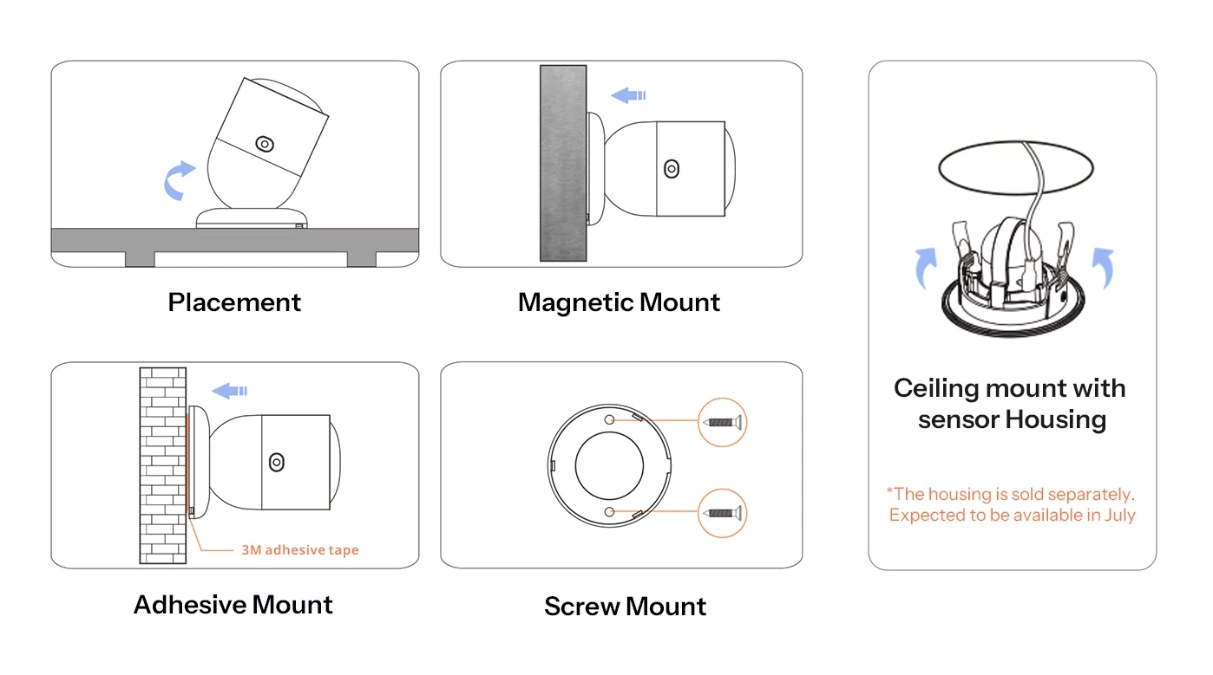
Flexiable Installtion to Fit More Doors & Windows
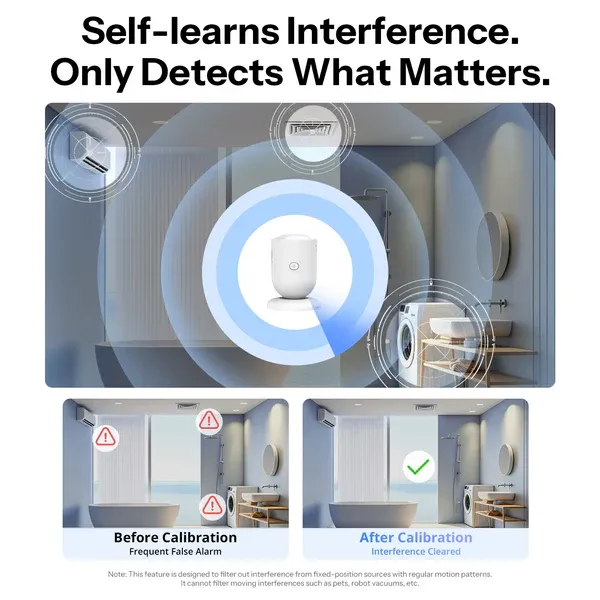
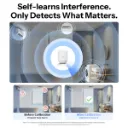
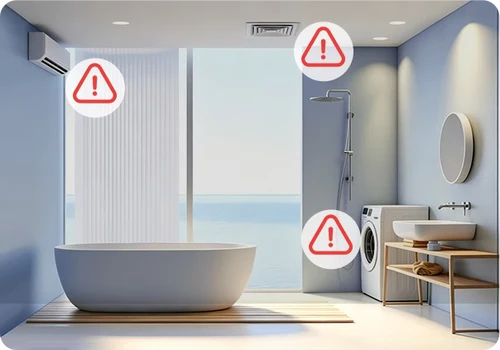
Before Calibration
Frequent False Alarm
After Calibration
Interference Cleared
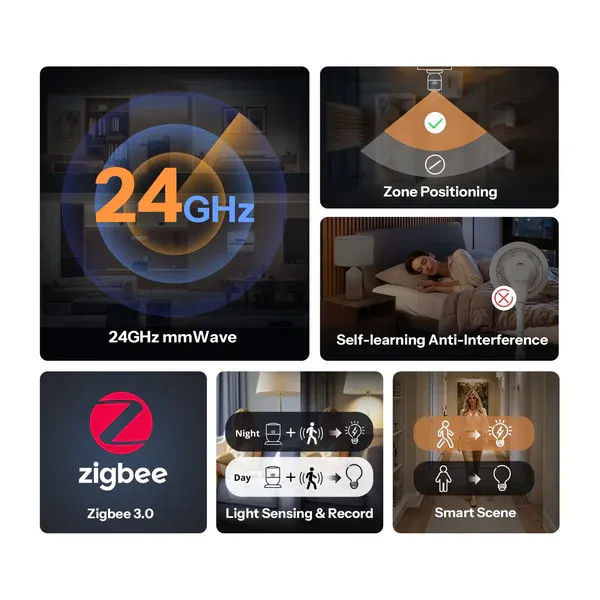
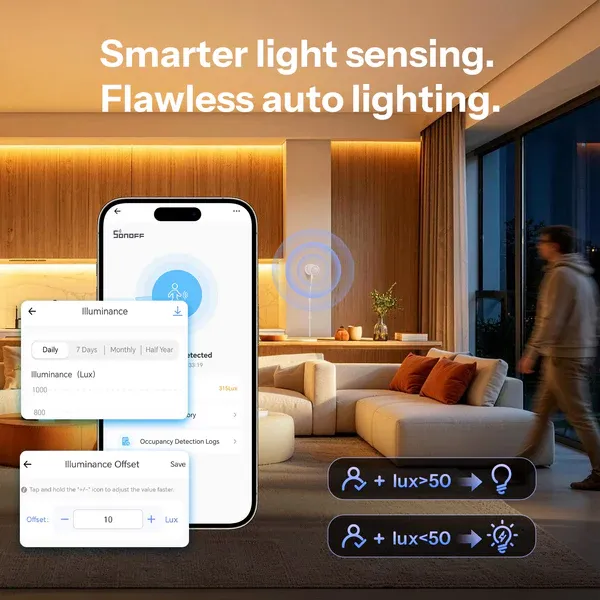
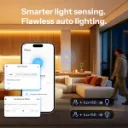
Smarter light sensing.
Flawless auto lighting.
The device features significantly improved light sensing accuracy. With added calibration and history logging,
it accurately records ambient light changes in your home environment, enabling precise automated lighting control.
Auto On for You. Auto Off to Save.
The device can trigger a wide range of smart scenes, automatically turning on appliances when someone is
present and turning them off when they leave, making daily life more convenient while saving energy.
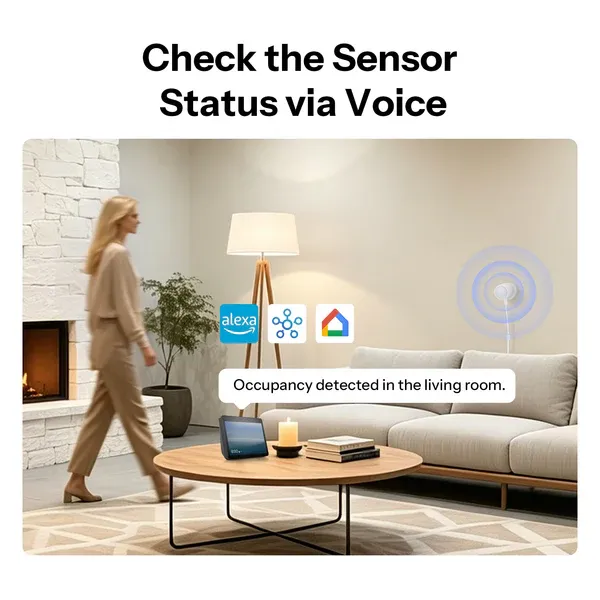
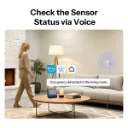
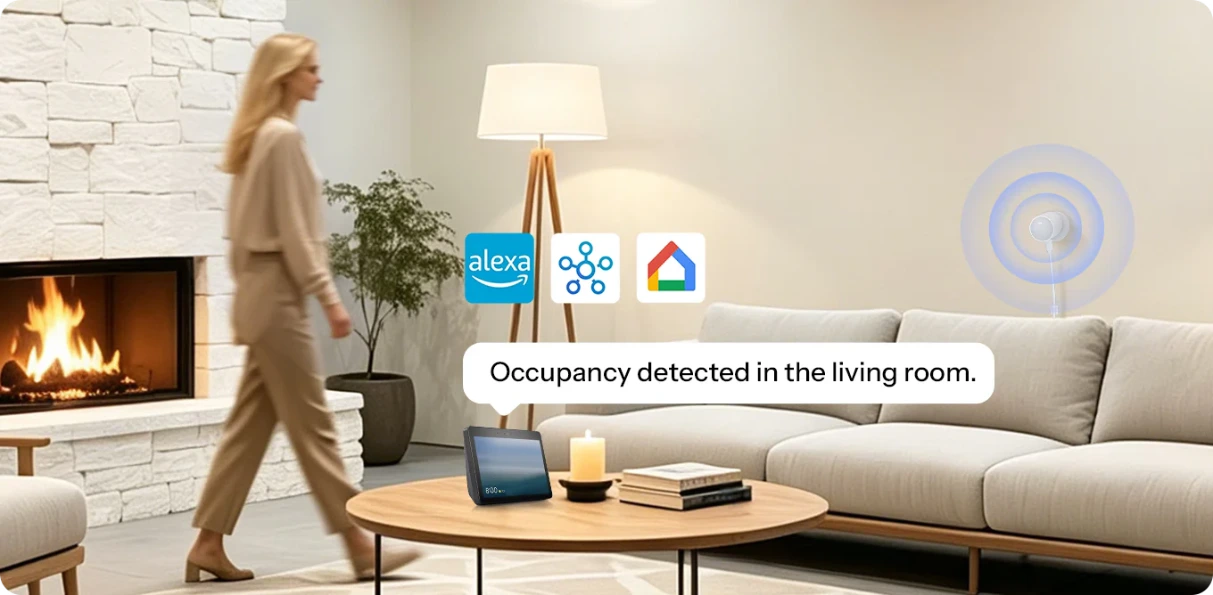
Check the Sensor Status via Voice
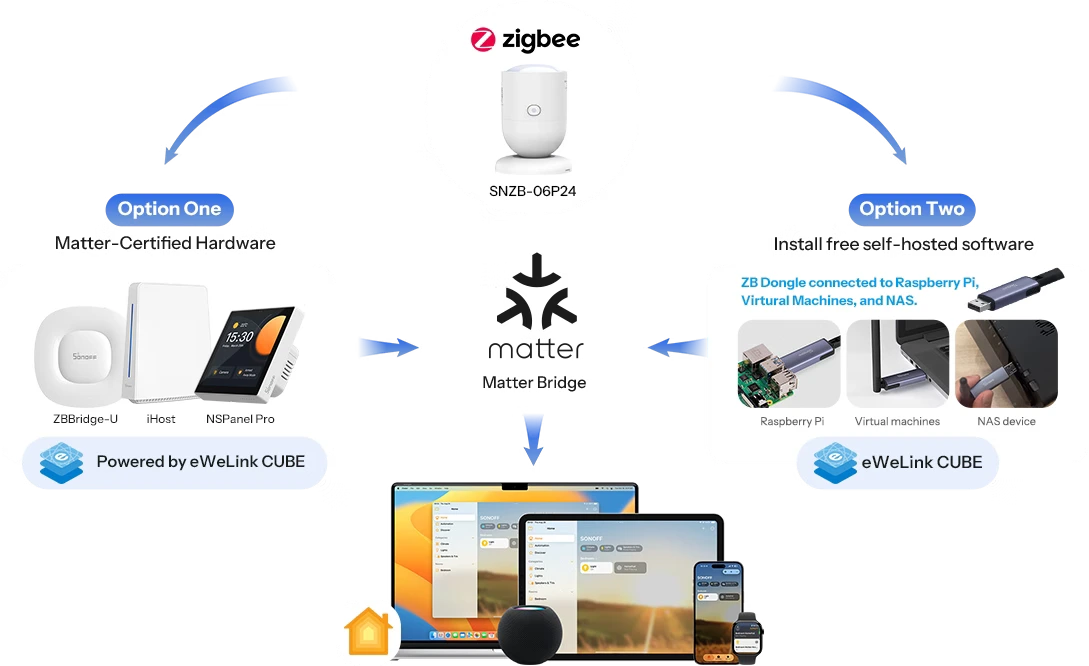
Works with Apple Home Via Matter Bridge
All solutions integrate SONOFF Zigbee devices into your Apple ecosystem via Matter Bridge, enabling seamless interconnected device control.
Learn More about ZBBridge-U | Learn More about eWeLink CUBE.
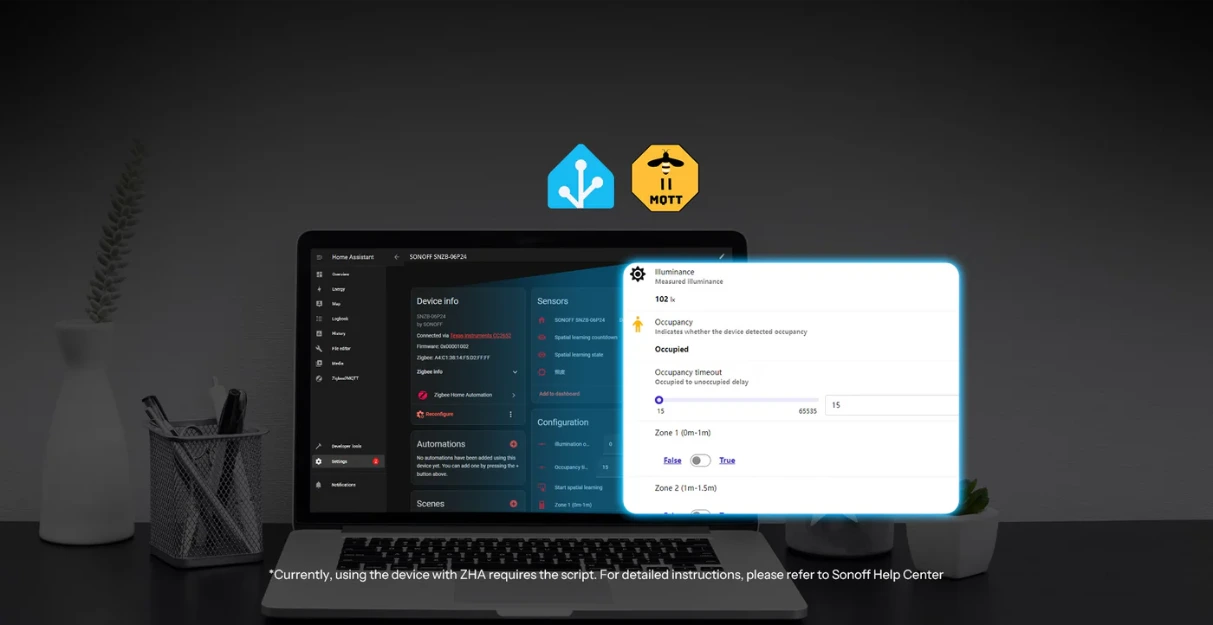
Easily Integrates with Open-Source Platforms
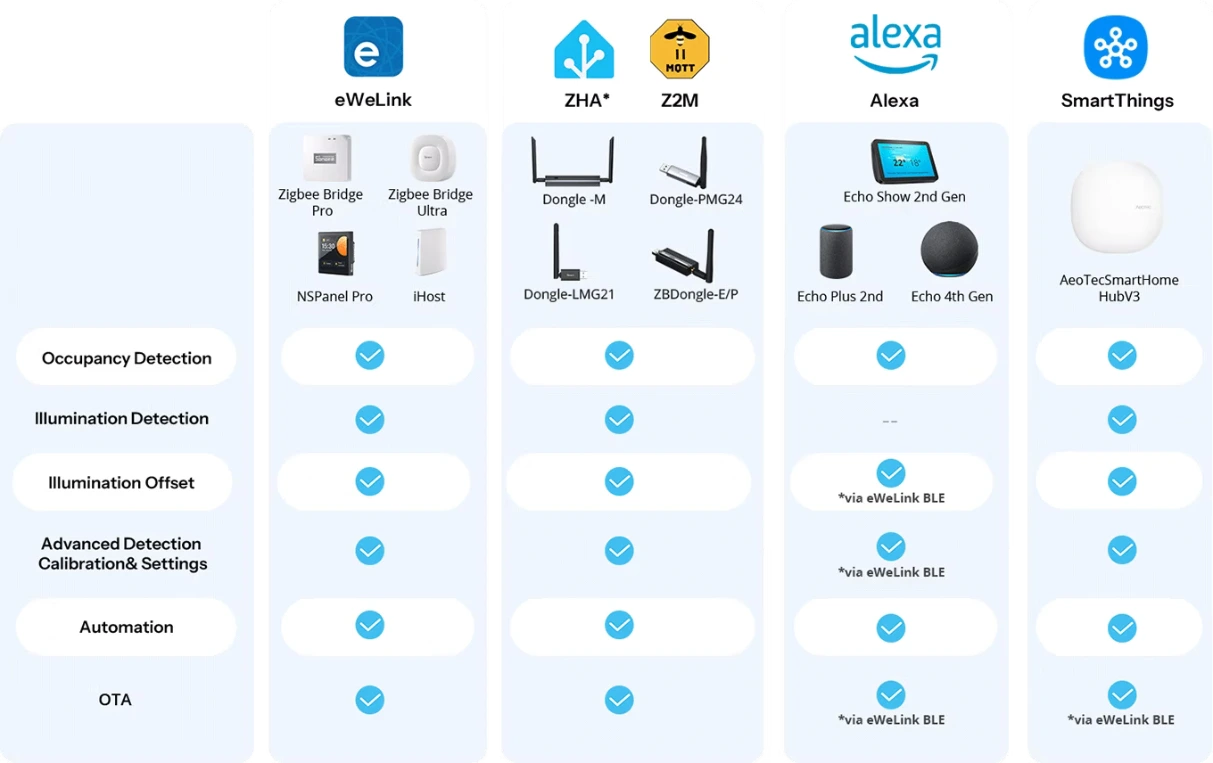
Integrate SenseGuard Presence Core 24G into Home Assistant open-source platform with
SONOFF Dongle Series.
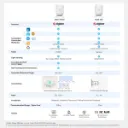
Zigbee Hub Compatibility
*Currently you need a script to add the device to ZHA or SmartThings. Please refer to Sonoff Help Center.
1. Matter Bridge: ZBBridge-U, iHost, Cube OS with SONOFF Zigbee Dongle 2. This function requires adding the device to the eWeLink app via the SONOFF Zigbee gateway and syncing it to third-party platforms through cloud-to-cloud integration.
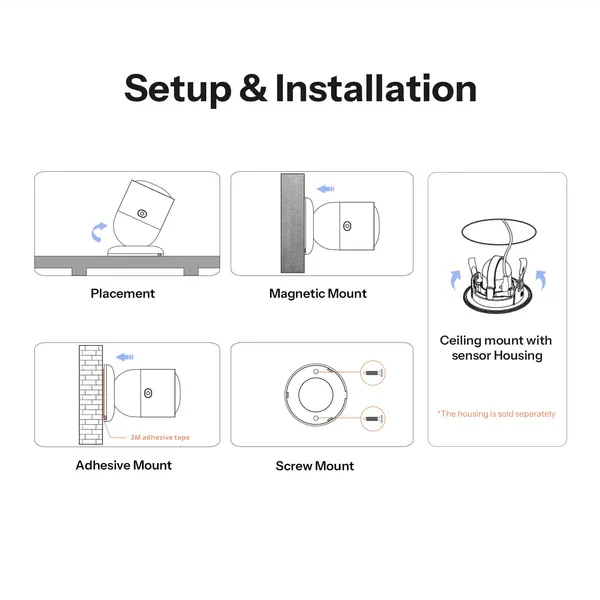
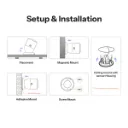
Setup & Installation
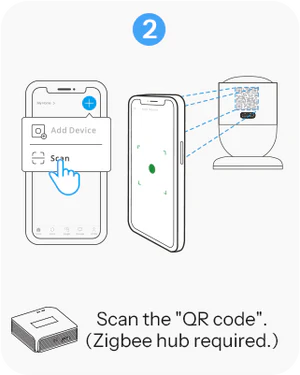
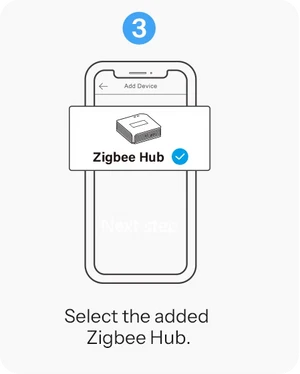
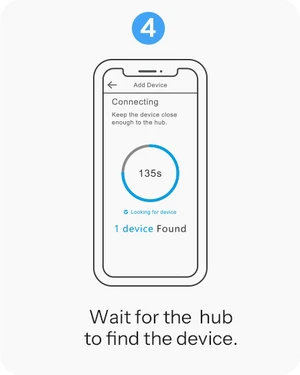
4 Steps to Use
Easily set up. Download the APP, scan the QR code to connect with the zigbee hub and control!
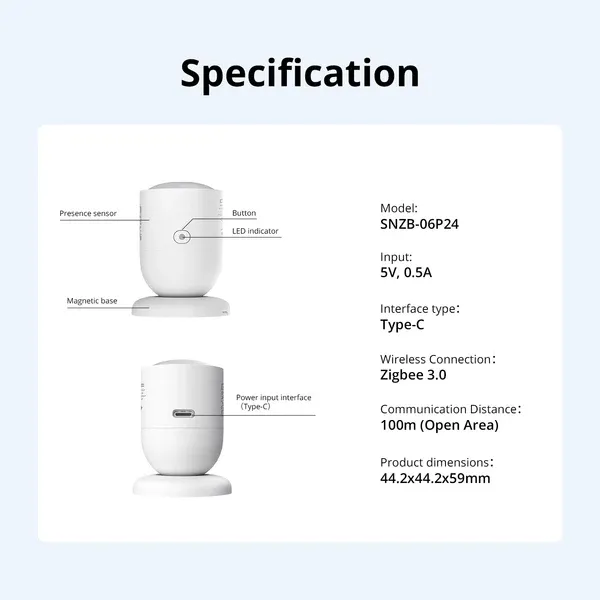
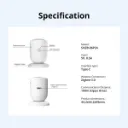
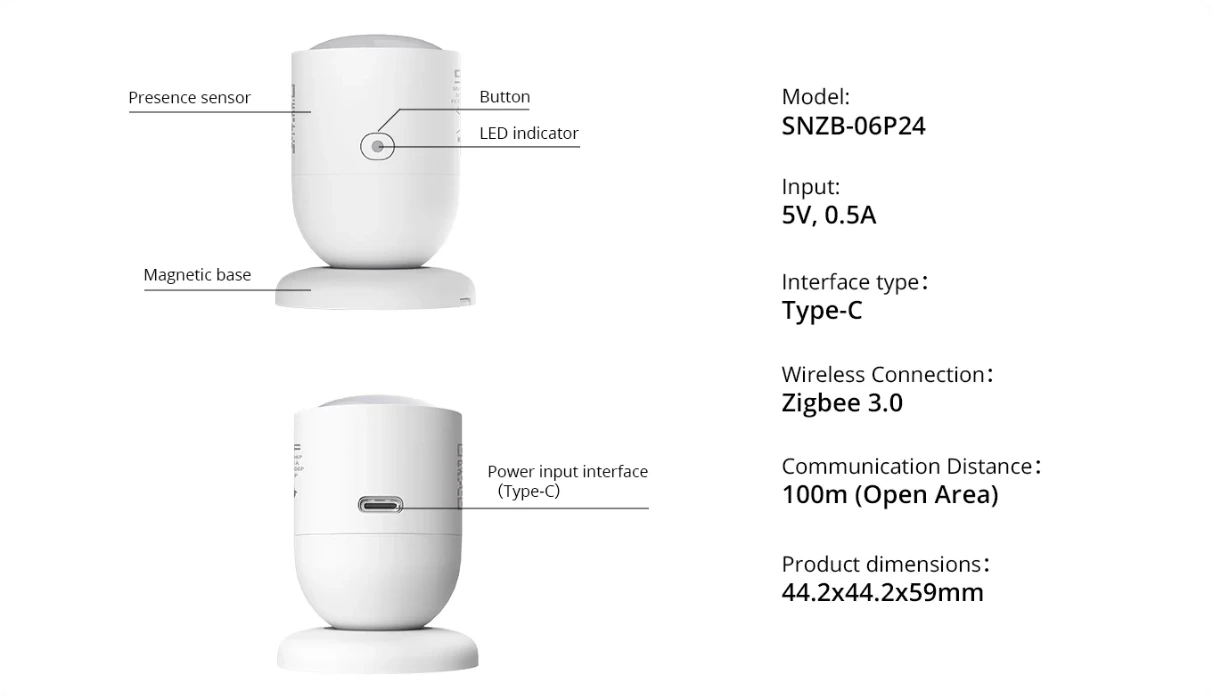
Specifications
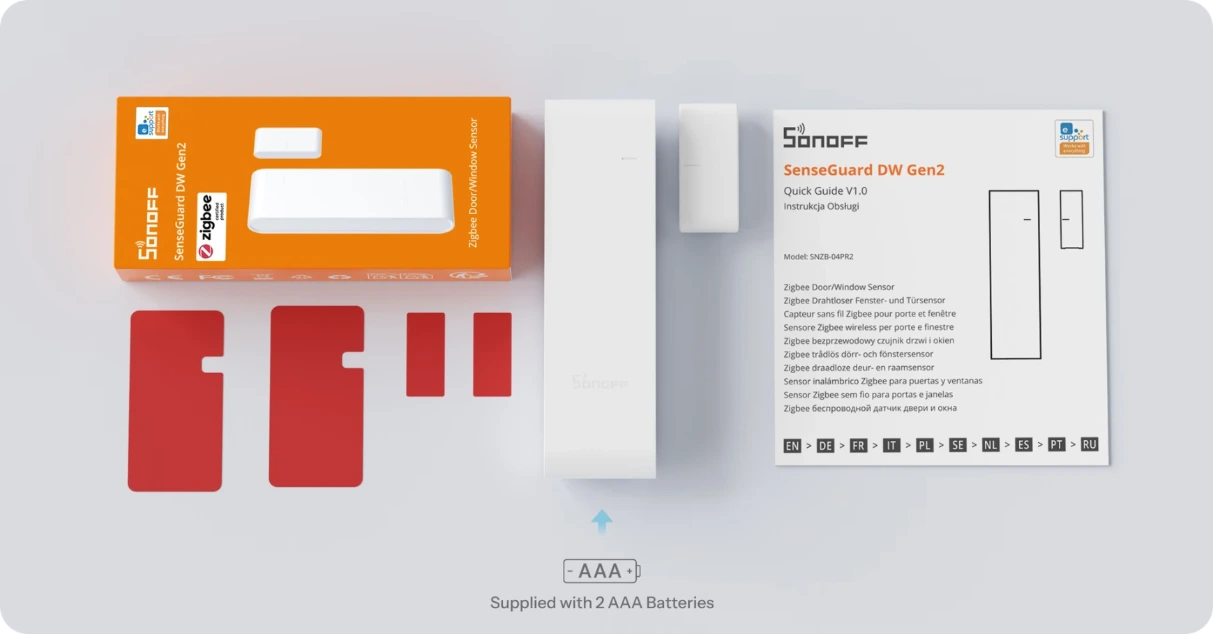
Package
Specs & User Manual
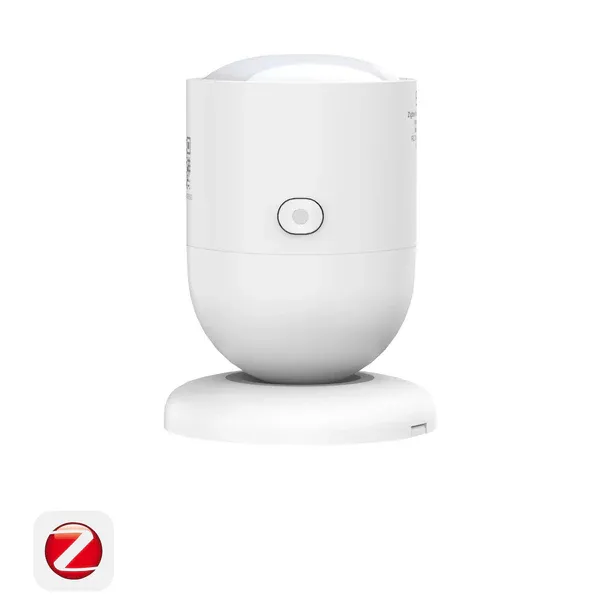
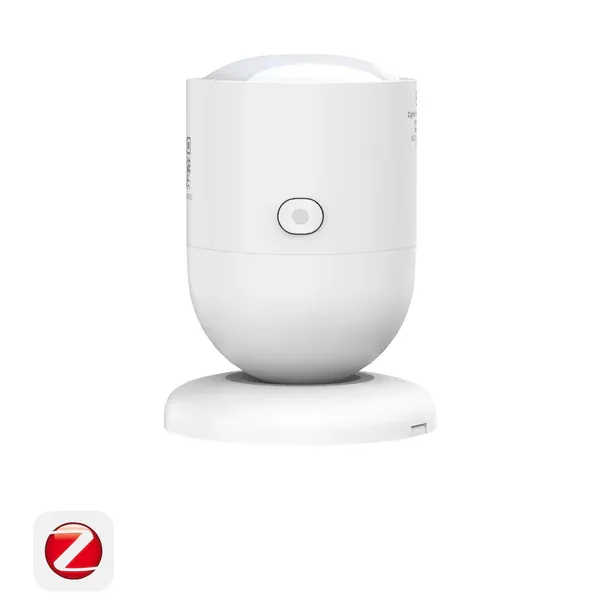
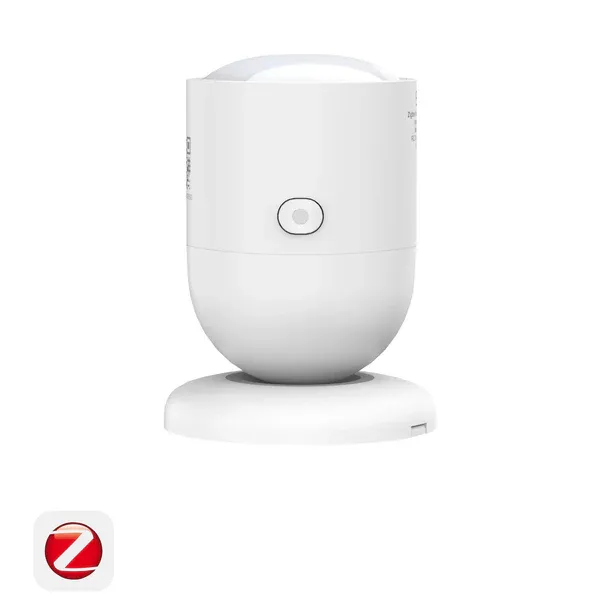
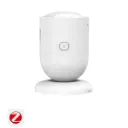
SNZB-06P24 is a Zigbee human presence sensor powered by advanced 24GHz mmWave radar technology for highly accurate presence detection. It can reliably detect even slight human movements, making it ideal for smart lighting, security, and home automation scenarios. With customizable detection zones, automatic interference filtering, and flexible installation options, SNZB-06P24 easily adapts to different indoor environments. Built-in ambient light sensing further enables smarter and more energy-efficient automation. Compatible with Zigbee ecosystems, SNZB-06P24 helps create a more responsive, convenient, and intelligent smart home experience.
The SNZB-06P24 accurately detects subtle human movements (chest expansion during breathing, small limb motions like hands). For a completely still person, detection works best within 3 meters directly facing the device. The device cannot accurately detect a sleeping person.
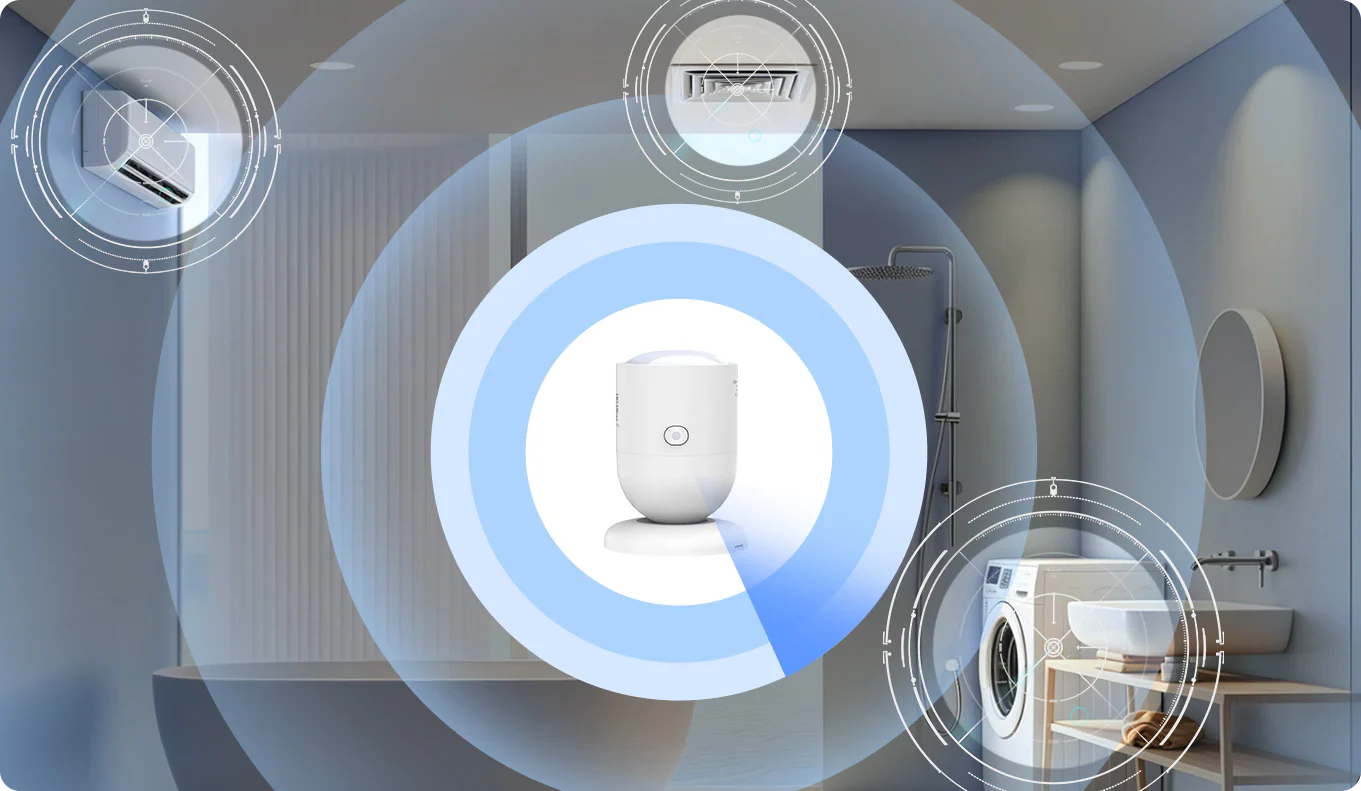
The device’s anti‑interference capability comes from the precision of the 24GHz mmWave radar and the Detection Calibration feature. Detection Calibration accurately filters out fixed‑position interference sources in the detection area, such as appliances, water pipes, and large metal surfaces. If an interference source changes position, Detection Calibration must be rerun.
The SNZB-06P24 cannot directly filter pet interference — you can avoid pet activity areas by adjusting the sensor upward.
Different sensor orientations may cause inconsistent brightness readings. Please fix the sensor orientation and use the calibration function to adjust the brightness.
Third‑party ecosystem users can connect to the eWeLink app via Bluetooth to configure advanced settings. The configuration is saved locally on the device and can be adjusted anytime through eWeLink BLE Setup.
Scan the QR code on the product with the eWeLink app, select eWeLink BLE Setup, and follow the on‑screen steps to add the device.
Press and hold the reset button for 10 seconds to reset the device. Note: This will clear all Zigbee pairing information from the device..
First, exit the Zigbee pairing mode on the device. Then enter the device details page in the app to keep the connection active. When the device is in Bluetooth connection mode, the blue indicator light stays on.